Step 1
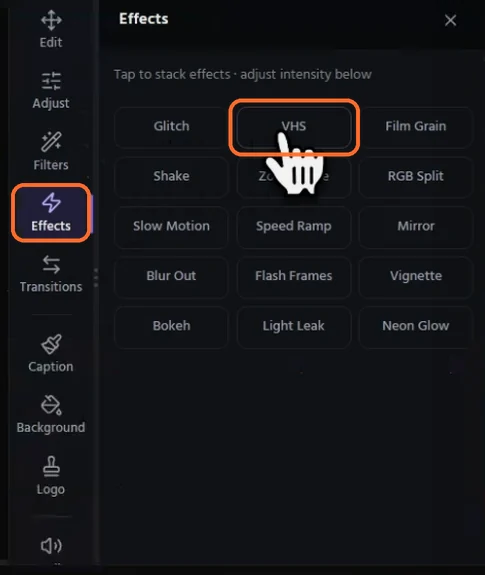
Open Effects and tap one
Click Effects in the right-hand toolbar and tap an effect, for example VHS. It plays on your clip straight away.
Step 2
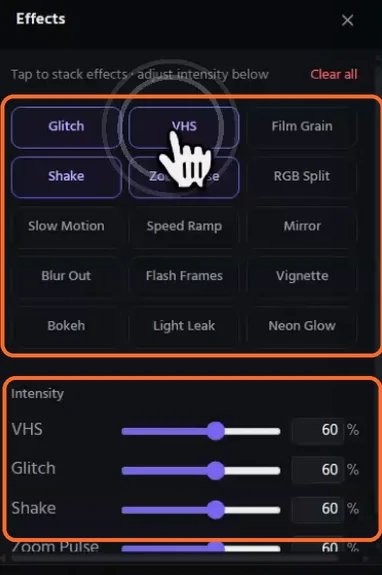
Stack effects and set the intensity
Tap more effects to stack them. Each one gets its own Intensity slider (60% to start), so you can make it subtle or strong.
Step 3
Remove an effect
Tap an effect again to remove it, or Clear all to remove every effect at once.
Tips
- On a talking-head clip, one or two effects at a low intensity look better than many at full strength.
- Zoom Pulse and Shake add energy to a hook; Vignette and Film Grain give a calmer, cinematic feel.
Questions
Which effects are there?+
Glitch, VHS, Film Grain, Shake, Zoom Pulse, RGB Split, Slow Motion, Speed Ramp, Mirror, Blur Out, Flash Frames, Vignette, Bokeh, Light Leak and Neon Glow.
Are the effects in the exported video?+
Yes. Reels with captions export pixel-exact, so they look as they do in the editor. For a reel without captions, keep Pixel-exact switched on in the export panel.