Step 1
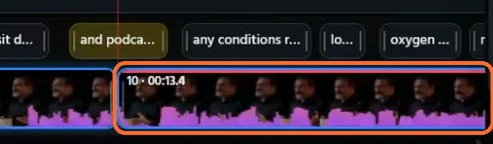
Click a part on the timeline
The parts of your clip are numbered on the timeline, with their length. Click the one you want to change.
Step 2
Edit only that part
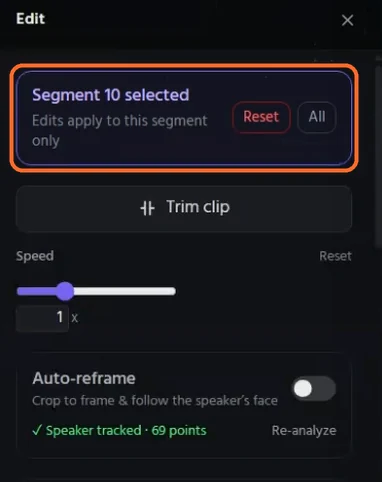
The right-hand panel says Segment selected: edits apply to this segment only. Trim clip, Speed, Auto-reframe, Adjust, Filters and Effects now change just this part.
Step 3
See the difference
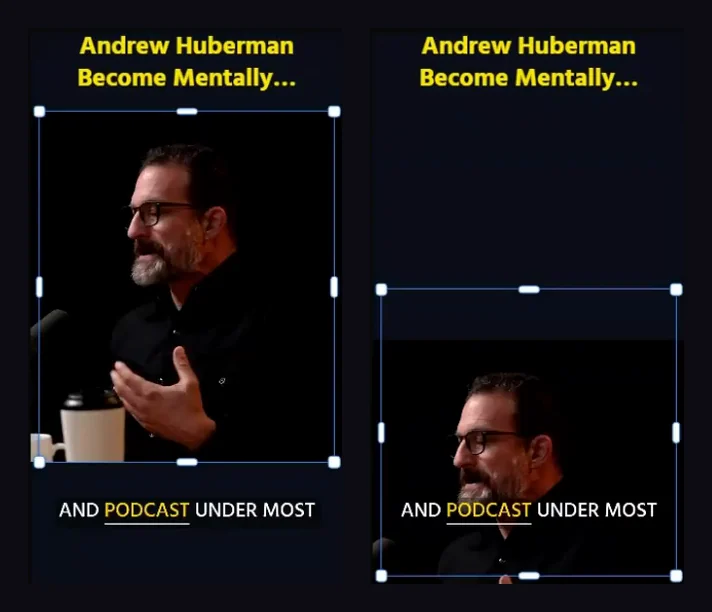
Here Auto-reframe is changed for this part alone; the rest of the clip stays as it was.
Step 4
Back to the whole clip
Click All to edit the whole clip again. Reset undoes this part’s changes.
Tips
- Use one part to zoom in on a key moment, slow down a punchline or change the framing when the speaker moves.
Questions
Can I select more than one part?+
Yes. Hold Ctrl (Cmd on a Mac) and click more parts; your changes apply to all of them.
How do I undo a change to one part?+
Click Reset in the Segment selected box, or press Ctrl+Z.