Step 1
Open Audio
In the editor, click Audio in the left toolbar. Video audio is at the top, Background music below.
Step 2
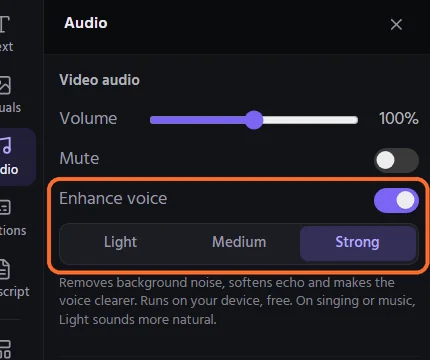
Enhance voice
Enhance voice removes background noise, softens echo and makes the voice clearer. Pick Light, Medium or Strong; on singing or music, Light sounds more natural. It is on by default and runs on your device, free.
Step 3
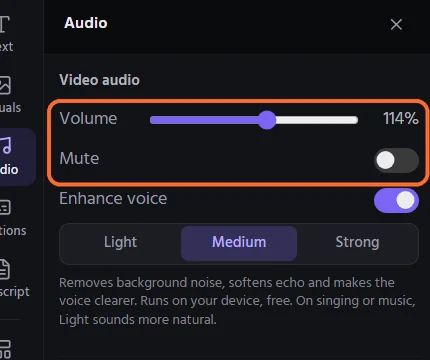
Set the video’s volume
Drag Volume to make the video’s own sound quieter or louder (it goes above 100%). Mute silences it.
Step 4
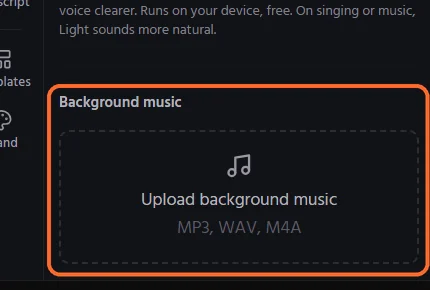
Add background music
Click Upload background music and choose an MP3, WAV or M4A file. Then set the music’s volume and fade it in or out; the × removes it.
Tips
- Keep music well below the voice: viewers should never have to strain to hear the speaker.
- Recorded in a noisy room? Try Strong; for a quiet room, Light keeps the voice most natural.
Questions
Does Enhance voice cost credits?+
No. It runs on your device and is free.
Is the enhanced voice in my export?+
Yes. The preview and the exported reel use the same sound settings.
Which music files can I use?+
MP3, WAV or M4A. Use music you have the rights to.