Step 1
Upload a video of 10 minutes or more
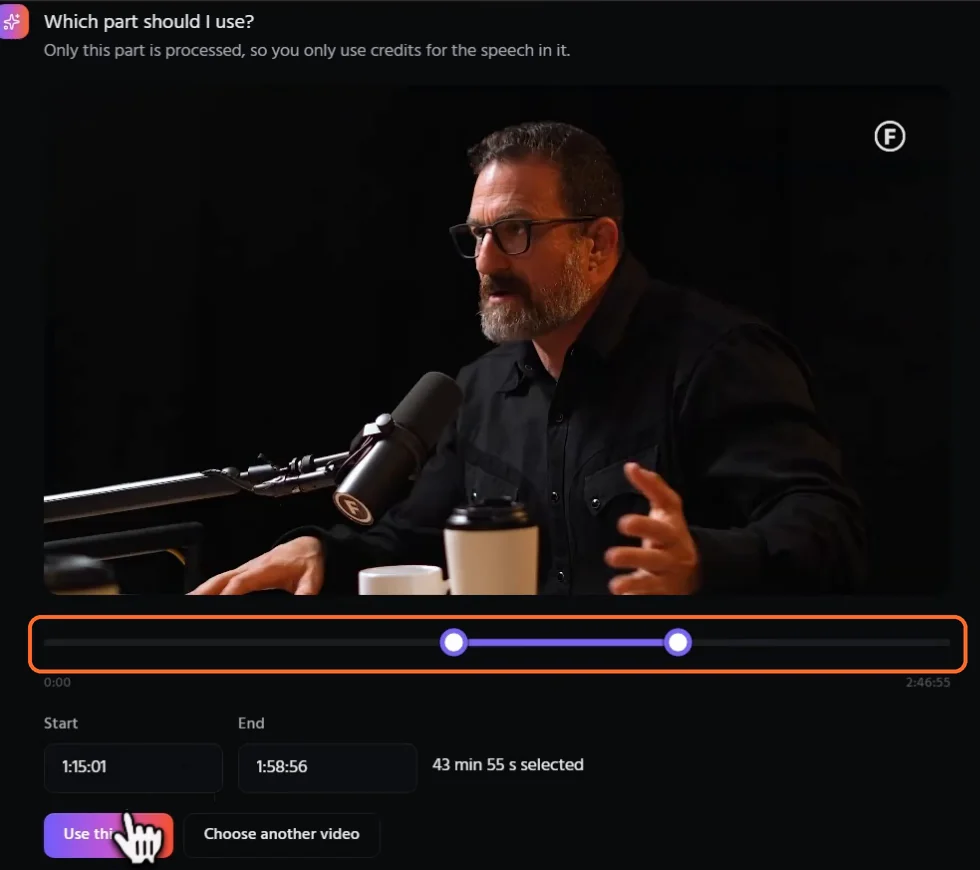
Start a new project and add your video. For any video of 10 minutes or more, Klipzam asks "Which part should I use?" before anything is processed.
Step 2
Drag the handles to the part you want
Drag the left handle to where your part starts and the right handle to where it ends. The preview shows the frame at the handle you move. A part is at least 10 minutes long.
Step 3
Or type the start and end
Type exact times in the Start and End boxes, like 1:15:00 or 12:30. A plain number is read as minutes, so 75 means 1:15:00.
Step 4
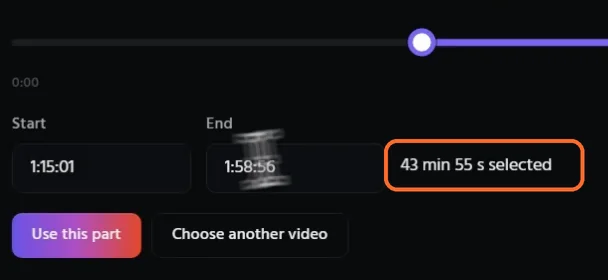
Check the length
Klipzam shows how long the chosen part is. Only this part is processed, so you only use credits for the speech in it (1 credit = 1 minute of speech).
Step 5
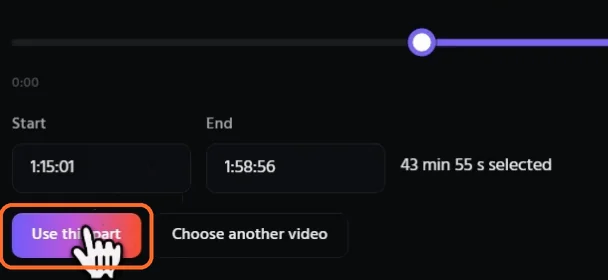
Click Use this part
Click Use this part. Your choice shows in the chat with a Change link, and the Clip Brief opens so you can say what clips you want.
Tips
- Long podcast with several topics? Upload it once per topic and pick a different part each time.
- Music, silence and pauses in the part are free: only speech uses credits.
Questions
Why does Klipzam ask which part to use?+
So you only process, and only use credits for, the part you actually want clips from. It appears for every video of 10 minutes or more.
How short can the part be?+
At least 10 minutes, which gives the AI enough material to find strong clips.
Can I change the part later?+
Yes, before you start finding clips: click Change next to your chosen part in the chat.