Step 1
Start a new project
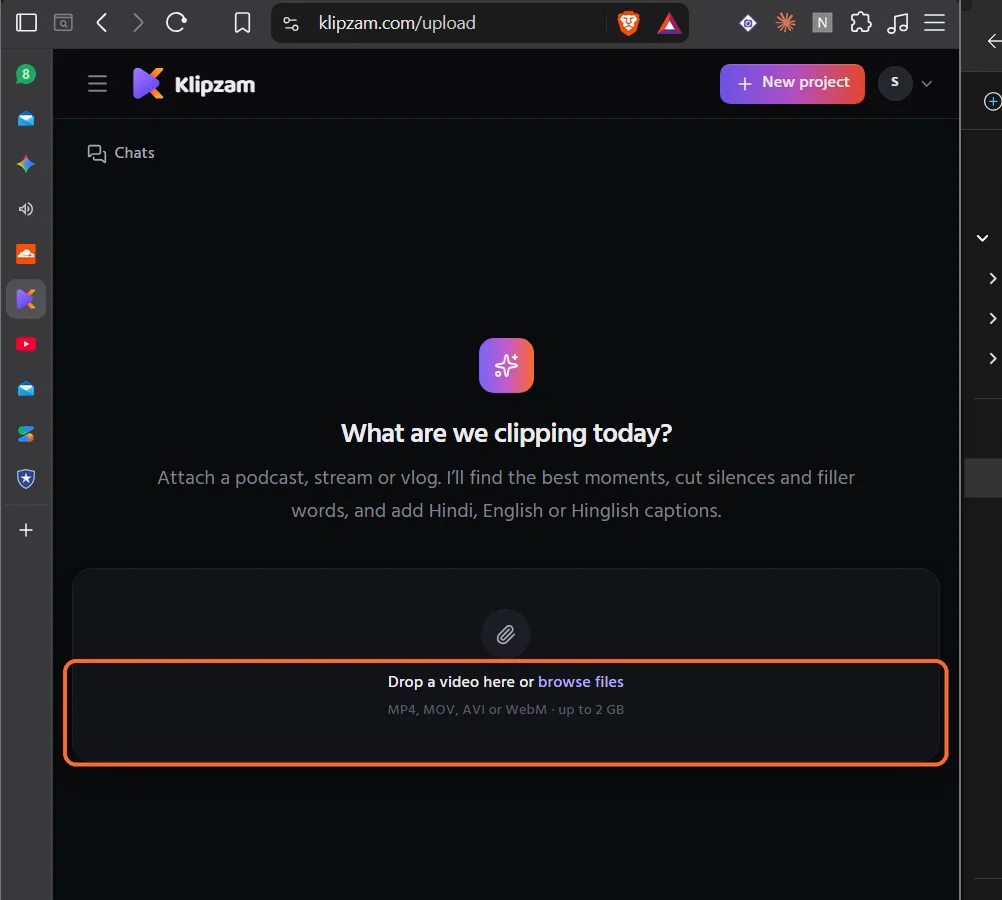
Click New project. The page asks what we are clipping today and shows a drop box.
Step 2
Drag your video onto the page
Open the folder with your video next to the browser and drag the file onto the page, or click browse files. MP4, MOV, AVI or WebM, up to 2 GB.
Step 3
Pick the part, then the Clip Brief
Klipzam opens the video in your browser. For a video of 10 minutes or more it first asks which part to use; then the Clip Brief opens.
Tips
- Podcasts, classes, interviews and streams work best: anything where people talk clearly.
- Only the speech is sent for transcription; the video file itself stays on your computer.
Questions
Which files can I upload?+
MP4, MOV, AVI or WebM, up to 2 GB.
Does uploading use credits?+
No. Credits are used for the speech in the part you process: 1 credit is 1 minute of speech.