Step 1
Open Export
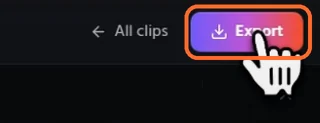
Click Export at the top right of the editor. The Export reel panel opens on the right.
Step 2
Choose the format and resolution
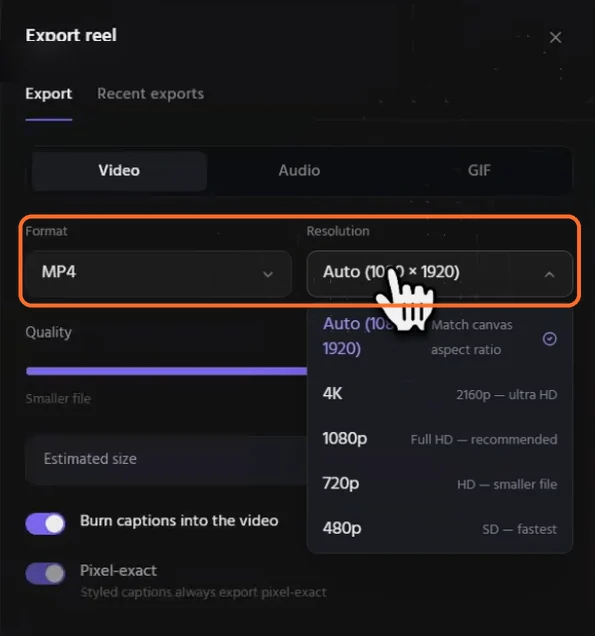
Video exports an MP4. Resolution Auto matches your canvas (1080 × 1920 for a 9:16 reel); you can also pick 4K, 1080p, 720p or 480p. The Audio and GIF tabs export sound only or a GIF.
Step 3
Set the quality
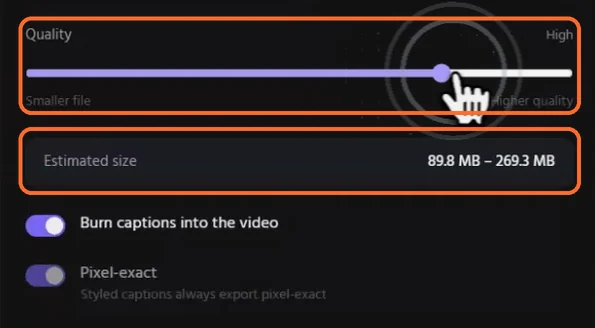
Slide Quality towards a smaller file or higher quality. The estimated size updates as you move it.
Step 4
Keep captions burned in
Burn captions into the video puts your captions in the picture, so they show on every platform. Styled captions always export pixel-exact, so they look exactly as in the editor.
Step 5
Export and download
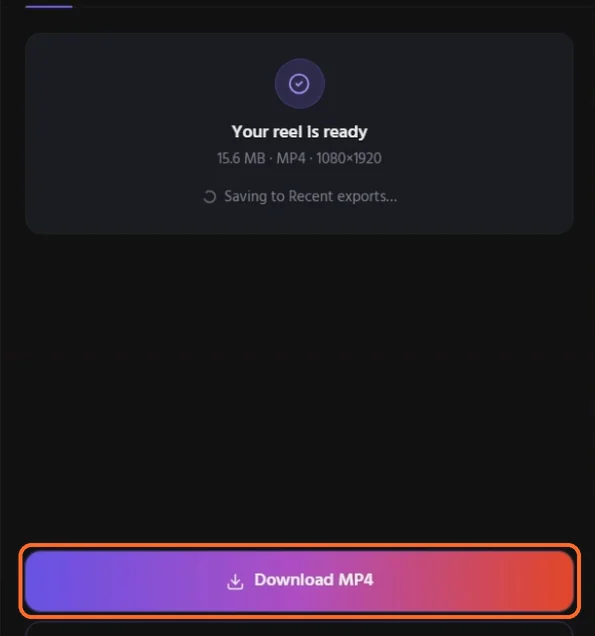
Click Export MP4. Klipzam makes the reel in your browser, so keep the tab open and in front until it finishes. Then click Download MP4. The reel is also saved in Recent exports for 7 days.
Tips
- 1080p (Auto for a 9:16 reel) is the usual size for Reels, Shorts and TikTok; 4K makes the file much bigger.
- A one-minute reel usually takes a minute or two to export, depending on your computer. Keep the tab in front so it doesn’t pause.
Questions
Where does the exported reel go?+
It downloads to your computer, and a copy is kept in Recent exports (in the Export panel) for 7 days.
Can I export without captions?+
Yes. Switch off Burn captions into the video. You can also download the captions as an SRT file from the Captions panel.
Can I export a square or wide version?+
Yes. Change the canvas shape (9:16, 1:1 or 16:9) in the editor, and Auto resolution follows it.