Step 1
Open the caption list
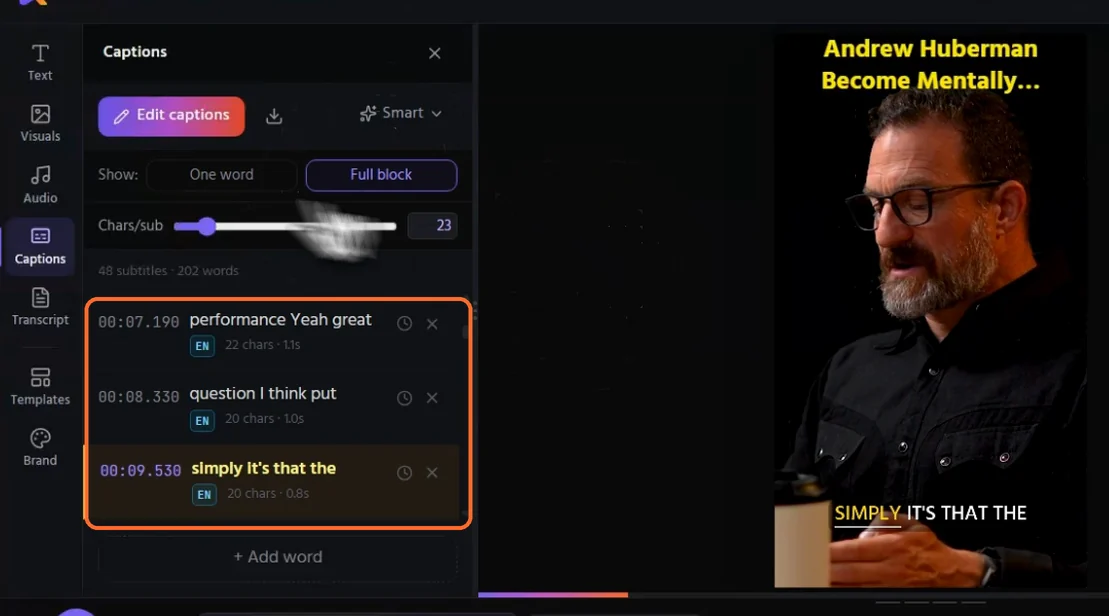
Click Captions in the left toolbar. Every caption is listed with its start time, its language, how many characters it has and how long it stays on screen.
Step 2
Set the caption length
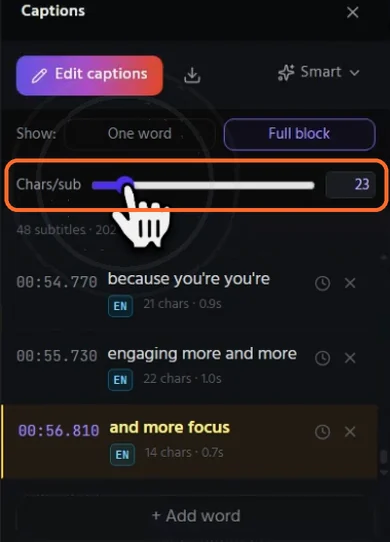
Drag Chars/sub to choose how many characters fit in one caption. The captions re-split at once; a caption that is still too long is marked "over limit".
Step 3
Follow along and jump
While the clip plays, the caption being spoken lights up in the list. Click a caption’s time to jump to it; click the time again to select that caption block on its own for styling.
Step 4
Fix words, download, remove fillers
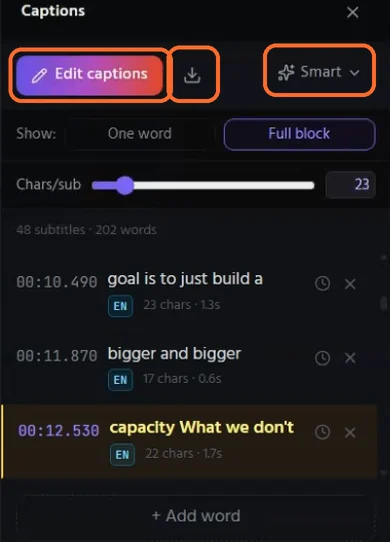
Click Edit captions (or click any caption’s text) to open every caption in one list and fix words. The download button next to it saves the captions as an SRT file, and Smart › Remove filler words takes out words like "um" and "matlab". The × on a line deletes that caption.
Tips
- Short captions (around 15 to 25 characters) are easier to read on a phone.
- The Show: One word / Full block switch changes the Classic caption styles. The newer styles have their own layout setting under Caption style › Typography.
Questions
Can I download the captions?+
Yes. The download button in the Captions panel saves them as an SRT file, which YouTube and most editors accept.
Does it work for Hindi and Hinglish?+
Yes. Each caption shows its language (EN, HI or HI+EN) and you can fix words in any of them.
Can I add a missing word?+
Yes. Use + Add word at the bottom of the list, or fix the line in Edit captions.