Step 1
Upload your video and open the Clip Brief
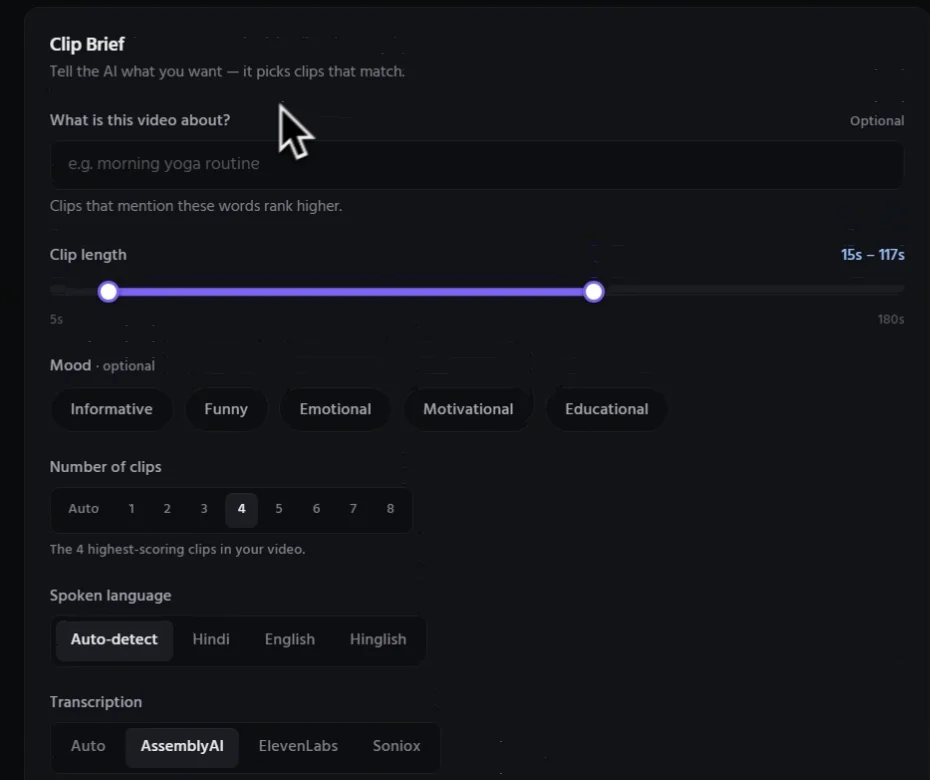
Start a new project and add your video. Before Klipzam looks for clips, it shows the Clip Brief. Everything in it is optional: if you change nothing, Klipzam uses your default settings.
Step 2
Say what the video is about (optional)
Type a few words in "What is this video about?", for example "morning yoga routine". Clips that mention these words rank higher.
Step 3
Set the clip length, mood and number of clips
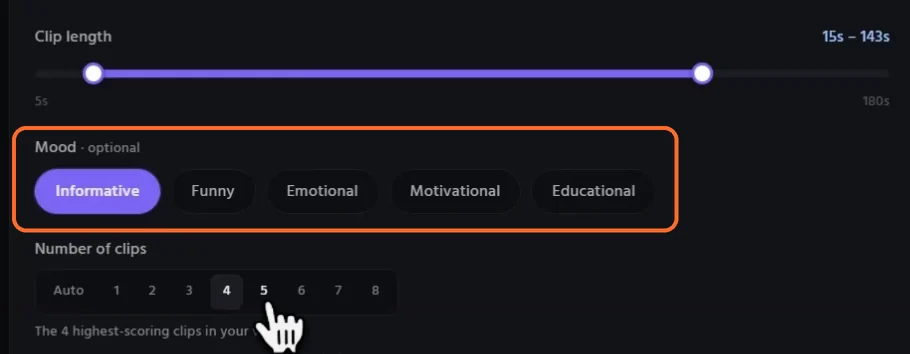
Drag both ends of the Clip length slider to set the shortest and longest clip: anywhere from 5 to 180 seconds. Pick a mood if you like (Informative, Funny, Emotional, Motivational or Educational) and moments that match it rank higher. Under Number of clips, choose 1 to 8, or Auto to keep every clip that scores 60% engagement or more, up to 8.
Step 4
Choose the spoken language and transcription
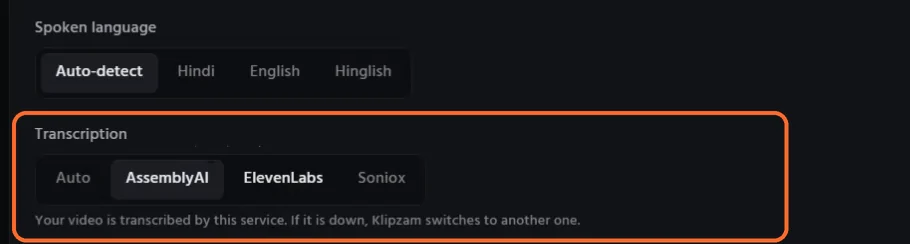
Auto-detect works for Hindi, English and Hinglish, or pick the language yourself. Leave Transcription on Auto unless you prefer one service: if the one you pick is down, Klipzam switches to another.
Step 5
Save these settings as your default
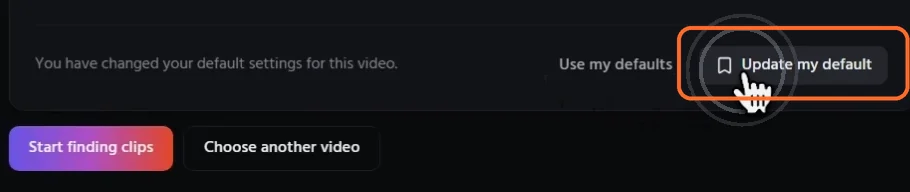
Click Save as my default (or Update my default if you already have one). Every new video then starts with these settings. Use my defaults brings them back if you changed something for one video.
Step 6
Start, and check the credits first
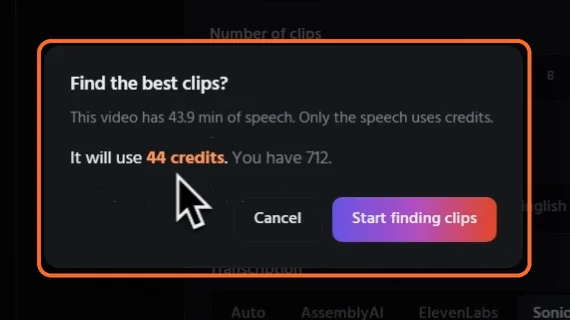
Click Start finding clips. Klipzam shows how many minutes of speech the video has and how many credits it will use before anything starts. Only speech counts: 1 credit is 1 minute of speech, and music, silence and pauses are free.
Step 7
Pick from your scored clips
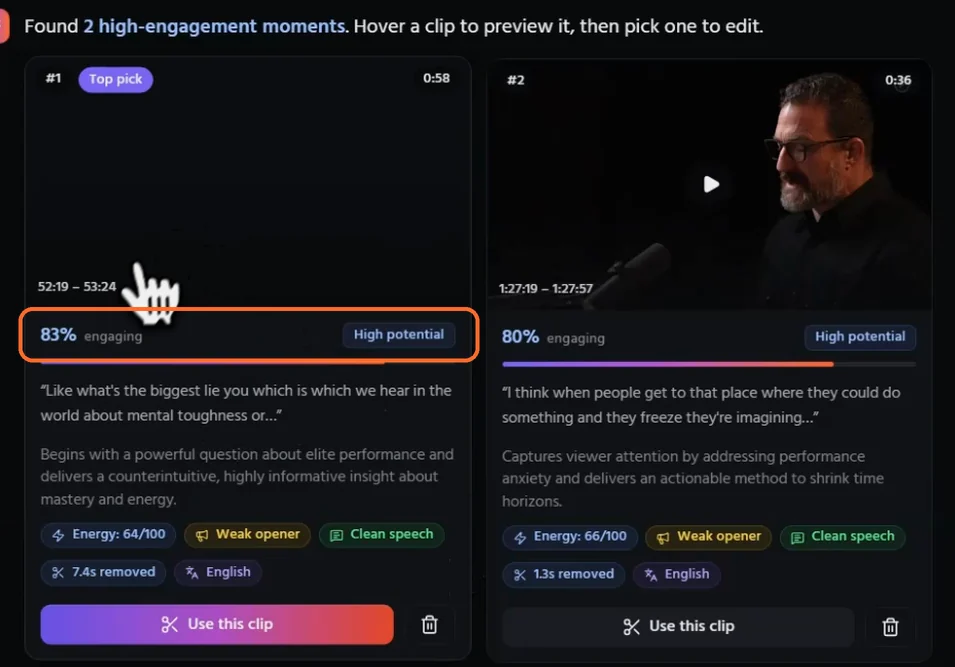
You can use other tabs while Klipzam works; keep the Klipzam tab open. When it is done, each clip shows its engagement score and why it was picked. Hover a clip to preview it, then click Use this clip to edit it.
Tips
- Not sure what to set? Leave everything on Auto for your first video, then adjust the clip length to what your platform likes.
- For a long video you only need part of, pick that part first: only the part you choose is processed and uses credits.
- Save your usual length and mood as the default once, so you don’t set them again for every video.
Questions
Do I have to fill in the Clip Brief?+
No. Every setting is optional. If you change nothing, Klipzam uses your saved defaults, or its own (15 to 90 second clips, Auto number of clips, Auto-detect language).
What does Auto do under Number of clips?+
Auto keeps every clip that scores 60% engagement or more, up to 8. Pick a number from 1 to 8 to get exactly that many of the highest-scoring clips instead.
Which languages work?+
Hindi, English and Hinglish (Hindi and English mixed). Auto-detect finds the language for you, or you can choose it.
How many credits will my video use?+
You see the number before it starts. 1 credit is 1 minute of speech, rounded up per video; music, silence and pauses are free.