Step 1
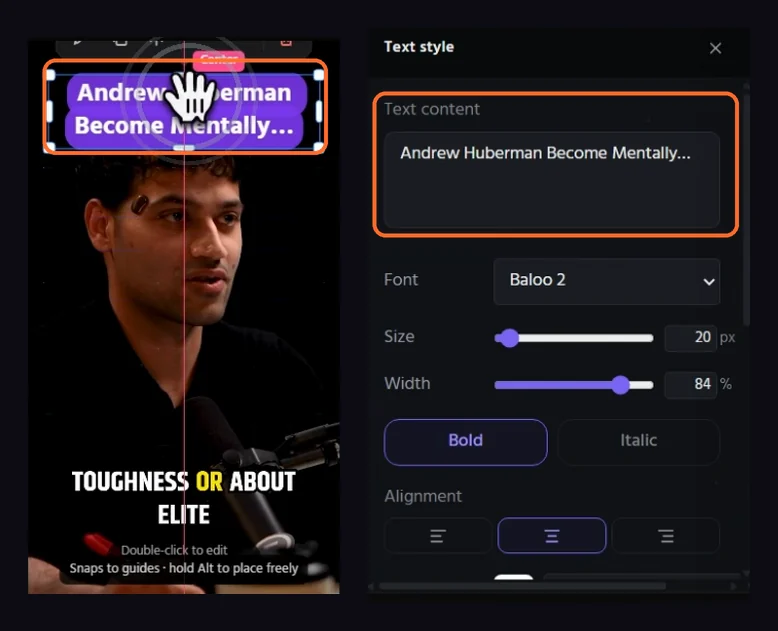
Select the title
Click the title on your video. It gets handles so you can drag or resize it, and the Text style panel opens on the right. No title yet? Add one with Text in the left toolbar.
Step 2
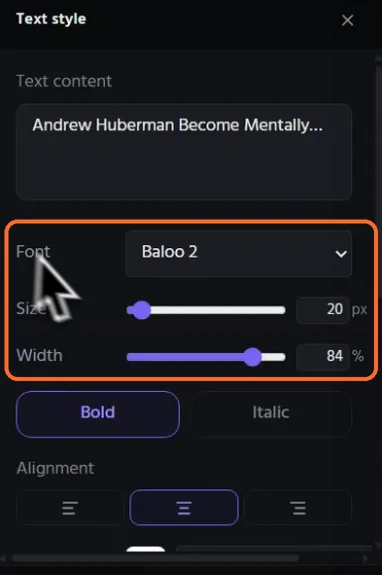
Type your hook, then set the font and size
Write your hook in Text content. Below it, choose the font, the size and the width of the text box, bold or italic, and the alignment.
Step 3
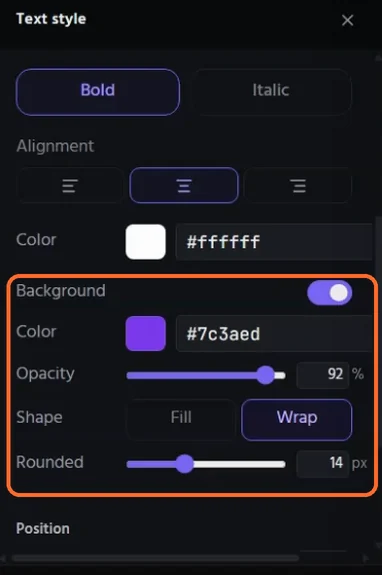
Add a box behind it, or remove it
Background puts a box behind the title. Set the box colour, how see-through it is (Opacity), its shape (Fill or Wrap) and how rounded its corners are. Switch Background off for text only.
Step 4
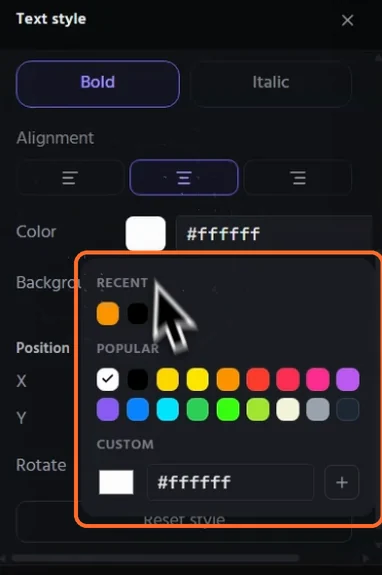
Pick the colour
Click the Color swatch and choose from your recent colours or the popular ones, or type your own colour code.
Step 5
Place and tilt it
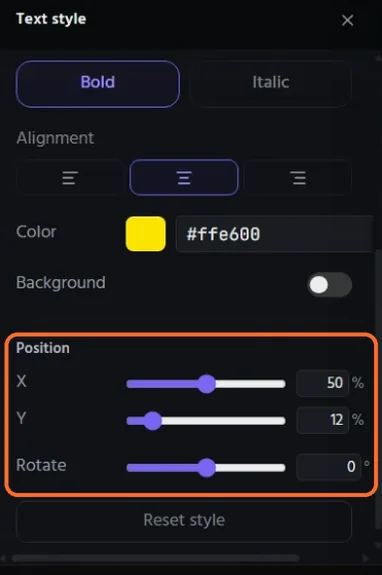
Move the title with Position X and Y, or drag it on the video. Rotate tilts it. Reset style brings back the original look.
Tips
- Keep the hook short enough to read in a second or two, and put it above the speaker’s face so it doesn’t cover it.
- Text only (no box) in a bright colour stands out on dark videos; a box keeps it readable on busy ones.
Questions
Can I write the title in Hindi?+
Yes. The fonts cover Devanagari, so Hindi, English and Hinglish titles all display correctly.
Can I have more than one text?+
Yes. Add more with Text in the left toolbar; each one has its own style.
How do I remove the title?+
Select it on the video and use the delete button in the small toolbar above it.